Settings
Click the GlideCursor icon in the menu bar to open the settings. Changes take effect right away.
The settings
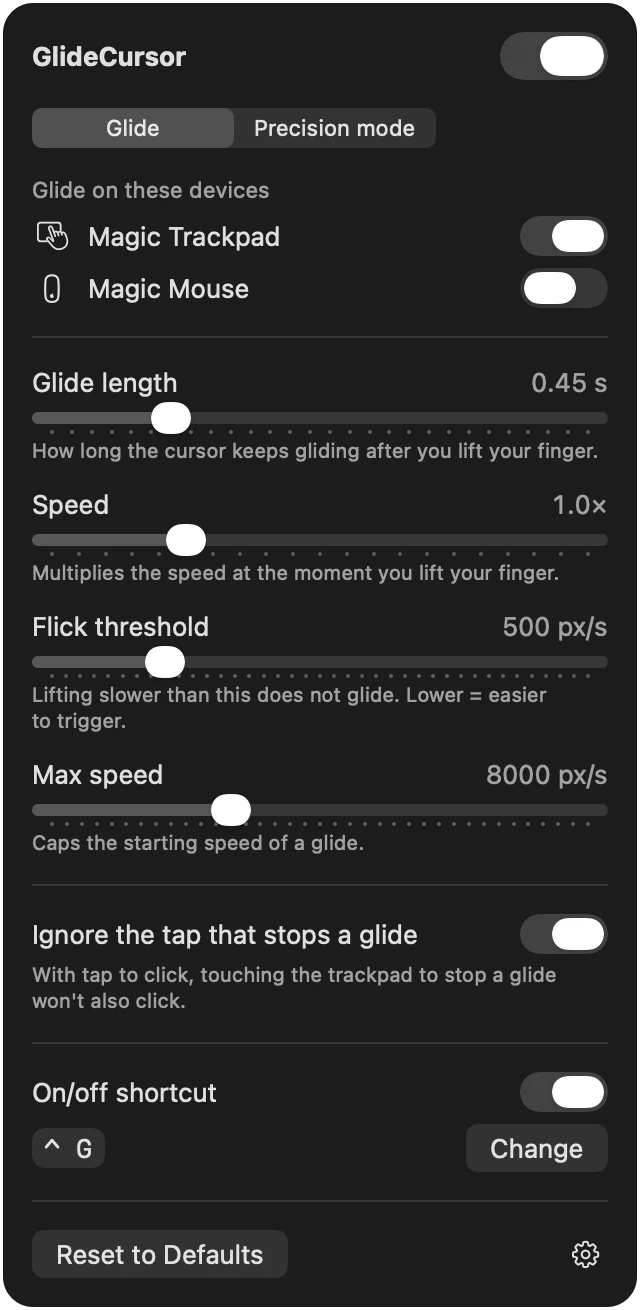
The switch at the top, next to GlideCursor, turns the whole app on or off. Below it are two tabs: Glide, described on this page, and Precision mode, described in Precision mode.
Glide on these devices
Your trackpads and Magic Mouse are listed here. Turn gliding on or off for each one. Trackpads are on from the start, and Magic Mouse is off.
The setting is kept for each device, even after you disconnect and reconnect it. A device that is not connected now is shown as Not connected.
How the cursor glides
- Glide length (0.15–1.5 s, default 0.45 s): how long the cursor keeps gliding after you lift your finger.
- Speed (0.5–2.5×, default 1.0×): multiplies the speed at the moment you lift your finger.
- Flick threshold (100–2000 px/s, default 500 px/s): lifting slower than this does not glide. Lower is easier to trigger.
- Max speed (2000–20000 px/s, default 8000 px/s): caps the starting speed of a glide.
Reset to Defaults at the bottom returns these four to their defaults.
Ignore the tap that stops a glide
On by default. With Tap to click, touching the trackpad to stop a glide won't also click. See The tap that stops a glide.
On/off shortcut
At the bottom of the Glide tab, turn on On/off shortcut to switch GlideCursor on and off with a key combination, from any app. The default is ⌃ G.
To change it, click Change, then press the new key combination.