Precision mode
Precision mode slows the cursor down for fine positioning, for example in a drawing app. While it is on, the cursor does not glide.
Turn it on
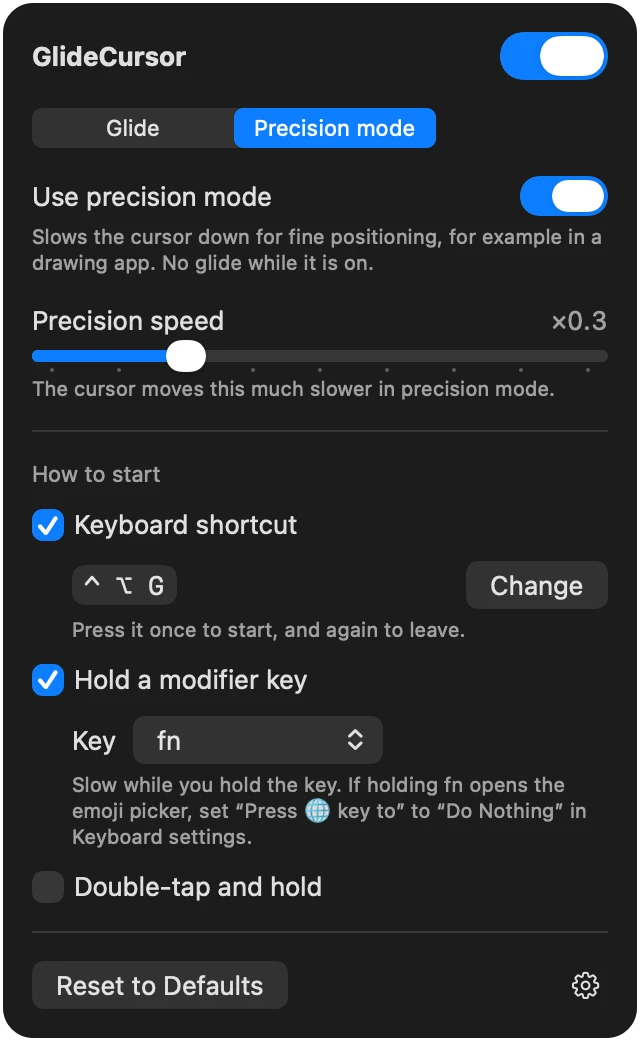
Precision mode is off at first. Open the settings, choose the Precision mode tab, and turn on Use precision mode.
Precision speed (×0.1–×0.9, default ×0.3) sets how much slower the cursor moves.
How to start
Tick one or more ways under How to start.
- Keyboard shortcut (on by default): press it once to start, and again to leave. The default is ⌃ ⌥ G. Click Change to use other keys. This works well while you also use the keyboard, for example in Illustrator.
- Hold a modifier key: the cursor is slow only while you hold the key (fn, ⌃, ⌥, ⇧ or ⌘; default fn).
- Double-tap and hold: double-tap the trackpad and keep your finger down. After the time set in Hold for (0–3 s), precision mode starts. Lift your finger to leave.
When precision mode starts, a ring shrinks around the cursor. When it ends, the ring grows and fades. The menu bar icon also changes while it is on.
Things to know
Double-tap to drag
If you use double-tap to drag (Dragging or Drag Lock in the trackpad settings), double-tap and hold clashes with it. Use the keyboard shortcut or a modifier key instead. With tap to click, the first tap of a double-tap also clicks.
Holding fn
If holding fn opens the emoji picker, open System Settings → Keyboard and set Press 🌐 key to to Do Nothing, or choose another key.